You are using an out of date browser. It may not display this or other websites correctly.
You should upgrade or use an alternative browser.
You should upgrade or use an alternative browser.
posting pictures
- Thread starter Rgillard
- Start date
- Views: 1581
More options
Who Replied?
/ posting pictures
#1

Lazy
Platinum Member
- Joined
- Dec 20, 2003
- Messages
- 527
- Location
- Missouri
- Tractor
- ford 1920 w/fel and bh, case 470, allis chalmers B 1937, JD 450 track loader, Case vac, 3 cub cadets ford lgt 125, Kubota 2230/60 inch mower.1948 farmall cub 1953 farmall cub
Hi
this is what I use its free
http://www.irfanview.com/main_download_engl.htm
I have used it for years and the best I have tried
Charlie
this is what I use its free
http://www.irfanview.com/main_download_engl.htm
I have used it for years and the best I have tried
Charlie
Glenn9643
Veteran Member
I've never used it, but Junkman recommended PIXresizer in this thread.
johnday
Veteran Member
- Joined
- Nov 14, 2003
- Messages
- 1,400
- Location
- monroe michigan, barton city soon
- Tractor
- NH TC 35 had, now a TC35DA LS25 lawnmower
Lazy; I down loaded irfanveiw a while back. It does work good. The only problem, I can't remember how to use it. Can you help, or anyone else? Judging by the amount of pics that are posted, it appears only a few of us are not computer friendly. /forums/images/graemlins/blush.gif
Could this be an Scot/Irish thing? /forums/images/graemlins/frown.gif
Could this be an Scot/Irish thing? /forums/images/graemlins/frown.gif

Inspector507
Super Member
I have always used PIXresizer, Photo Studio or even Paint that comes with all Windows versions.
PIXresizer is my favorite to use though.
PIXresizer is my favorite to use though.
Freds
Veteran Member
If you can look at the pictures on your computer, then you are opening them in SOME program, whether it came on your pc or was installed when you installed the drivers for your digital camera from the cd rom that came with it.
Open a picture and look across the top for something that says "image". I have used several programs to open pics and there has always been an "image" in the top taskbar. Under image should be the option to resize. If you see something that says "lock aspect ratio" put a checkmark in the box and the picture will reduce in size proportionately (width and height). It doesn't really make any difference if you reduce it in size by pixels or dimensions. After it is smaller right click on it and choose properties to see if it is small enough to post.
Reducing the picture in size may reduce it permanently. In other words, it may lose enough quality to make a poor printed version. Once you hit "save" it's too late. If you think you may want to save the original pic, then copy and paste it within the program and work on the copied one.
Hope this gives you something else to work with.
Open a picture and look across the top for something that says "image". I have used several programs to open pics and there has always been an "image" in the top taskbar. Under image should be the option to resize. If you see something that says "lock aspect ratio" put a checkmark in the box and the picture will reduce in size proportionately (width and height). It doesn't really make any difference if you reduce it in size by pixels or dimensions. After it is smaller right click on it and choose properties to see if it is small enough to post.
Reducing the picture in size may reduce it permanently. In other words, it may lose enough quality to make a poor printed version. Once you hit "save" it's too late. If you think you may want to save the original pic, then copy and paste it within the program and work on the copied one.
Hope this gives you something else to work with.
Junkman
Super Member
I have both Ifanview and PIXresizer and use both. For quick picture resizing for posting or e mailing, the PIXresizer is the quickest way to do it. It doesn't change the original picture, but gives you a second "view" and is marked accordingly so you can quickly find it in your picture folder. Give it a try and see how quickly it works... "better than sliced bread" /forums/images/graemlins/grin.gif /forums/images/graemlins/grin.gif /forums/images/graemlins/grin.gif
Glenn9643
Veteran Member
It doesn't really make any difference if you reduce it in size by pixels or dimensions.
I disagree. You can easily reduce the dimensions of a picture to the point that there's no point in posting because you can't see it. You should be able to maintain an image size of at least 800x600 in order for viewers to be able to see what you're trying to post. Reduce the pixels or DPI in order to reduce the file size. There's should be an option in your imaging program to set the "resolution" which determines dots per inch or DPI. About 70 DPI is plenty for web viewing and generally will allow an adequate picture size. There's no point in posting a picture that can't be seen.
The attached picture is 72 DPI.
I disagree. You can easily reduce the dimensions of a picture to the point that there's no point in posting because you can't see it. You should be able to maintain an image size of at least 800x600 in order for viewers to be able to see what you're trying to post. Reduce the pixels or DPI in order to reduce the file size. There's should be an option in your imaging program to set the "resolution" which determines dots per inch or DPI. About 70 DPI is plenty for web viewing and generally will allow an adequate picture size. There's no point in posting a picture that can't be seen.
The attached picture is 72 DPI.
Attachments


hennydamule
Silver Member
If you're using photoshop, goto image and resize. My pics are from a 5MB camera, so they're usually still too big. I don't want to make them too small, so there is an option to "save for web". When you click this, it gives you the option to lower the quality of the pic and lets you see how big the file is while you're doing it. Just get it down to 100K and you're cool! /forums/images/graemlins/cool.gif
OkieG
Veteran Member
<font color="blue"> Reducing the picture in size may reduce it permanently. </font>
Instead of pressing "Save", I select the "Save As" option. Changing the name of the modified photo will save the original unchanged, and the modified photo, each with their own name.
OkieG
Instead of pressing "Save", I select the "Save As" option. Changing the name of the modified photo will save the original unchanged, and the modified photo, each with their own name.
OkieG
johnday
Veteran Member
- Joined
- Nov 14, 2003
- Messages
- 1,400
- Location
- monroe michigan, barton city soon
- Tractor
- NH TC 35 had, now a TC35DA LS25 lawnmower
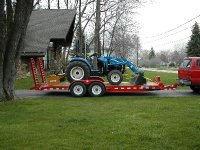
Freds
Veteran Member
I wondered where this post went.
I was trying to give the simplified instructions. I know there are finer points that I left out such as how to save and pixels vs. dimensions. I assumed it was known we weren't talking about reducing to thumbnail size /forums/images/graemlins/frown.gif
I personally would rather see a smaller pic with a higher quality than a large pic of reduced quality. It really all depends on how the camera was set up when the picture was first taken. Bigger file sizes seem to reduce to a higher quality than starting with a low quality pic to begin with that still needs reduced.
I was trying to give the simplified instructions. I know there are finer points that I left out such as how to save and pixels vs. dimensions. I assumed it was known we weren't talking about reducing to thumbnail size /forums/images/graemlins/frown.gif
I personally would rather see a smaller pic with a higher quality than a large pic of reduced quality. It really all depends on how the camera was set up when the picture was first taken. Bigger file sizes seem to reduce to a higher quality than starting with a low quality pic to begin with that still needs reduced.
GoodGuy
Gold Member
Inspector...
When I use Pixresizer, is there a way to see the size of the file besides saving. What happens here is the I guess what the dimensions are & then save to my desktop. I right click the file on my desktop & go to properties & see the file size. If it's still too big I have to go back & do it all over again. Man, there's got to be something I'm missing.
Please Help
Eric
When I use Pixresizer, is there a way to see the size of the file besides saving. What happens here is the I guess what the dimensions are & then save to my desktop. I right click the file on my desktop & go to properties & see the file size. If it's still too big I have to go back & do it all over again. Man, there's got to be something I'm missing.
Please Help
Eric

Bird
Rest in Peace
Eric, you're doing it the same way I do; hope someone does give us a better way.
Inspector507
Super Member
That's how I have to do it as well /forums/images/graemlins/crazy.gif
GoodGuy
Gold Member
Bird...
Just thought I was missing something; if that's the way the program is designed, I can live with it.
Cheers
Eric
Just thought I was missing something; if that's the way the program is designed, I can live with it.
Cheers
Eric