KISS -- keep it simple ....
I appreciate all that effort by Grrrr in the early 1/3 or so of this ridiculously long 138 post thread. My comment is that the advice posted by Grrr and most others is just WAY too complex. No need for all that.
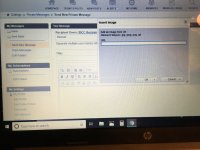
1) Go to the icon in your Quick Reply Header in any thread and click on the square one that is called "Insert Image."
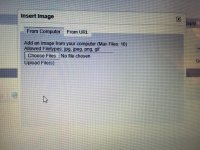
2) That brings up a small dialog window that has 2 tabs at the top -- one saying "from computer" and one saying "from URL." Click on "from computer."
3) Then click on "choose file" and find the picture in your pc and double click on it. Finding the picture will mean wading around in the pc to where you have it stored USING THE MECHANISM THAT IS OFFERED TO YOU UNDER CHOOSE FILES. I strongly recommend going and finding the picture you wish to post externally as a side activity before you get into this posting process. That way you know what file name you intend to post, where it is, etc.
4) Finally, after choosing the file, click on "upload File" right below the "Choose files."
I did that twice in order to insert the two images below into this post. Both are between 3 and 4 MB each. Typical of modern digital cameras or cellphones.
You do NOT need to worry about resizing, using Photoshop or some other manipulation software, nor using any of the myriad many places on the web or in specialty places where photos might be stored such as Photobucket, Flickr, Shutterfly or any of that. I am using a PC running Windows 7 and nothing fancy in any respect. The files are automatically resized to fit the TBN mechanisms or if there is an unlikely problem -- it will tell you so.
I do not see how it can get any simpler than this. Works every time. Inserts a medium postage stamp sized thumbnail in the post and a reader can click on that thumbnail to get the full-size rendering on his screen.
For anyone using a dial-up internet service I gingerly choose my words, but -- I do not see how you can use your PC in general or TBN in particular. That is a severe handicap at best.
Suggest getting advice from your local PC assistance source.
Note: when doing as I suggested above, you will only see the text version of reference to an attachment in brackets [ ] for the picture. To see what it will look like in the actual post use "Go Advanced" at the bottom of the screen which will automatically invoke the "preview post." After that you can refine your tentative post, add or subtract whatever you wish and then hit "submit reply" which I just did and now you see it.
Good luck.