Photo Posting How To

   / Photo Posting How To #161  
"I just wrote up a short and basic tutorial of how to Post Photos on TBN. I'll post it here and also in a separate thread. Please add or modify as needed.
rScotty. "


Because of my ADD affliction I prefer a tutorial with pictures, charts and graphics, and in color. This IrfanView thing sounds interesting if not complicated, I might look into that.
 
   / Photo Posting How To #162  
How does on update the avatar (user identity picture)?
 
   / Photo Posting How To #163  
How does on update the avatar (user identity picture)?
Click "My Home" at the top of any page:

mh.PNG


Click "Edit Avatar":

ea.PNG


This will open a page to upload your avatar:

ua.PNG
 
   / Photo Posting How To #164  
Xfaxman, thank you. You posted many times about clicking the picture in edit mode, but nothing I did had any effect.
Until you posted this!

WYSIWYG.JPG


How about that, now it works1 :thumbsup:
 
   / Photo Posting How To #165  
ALL: i've found two methods of posting thumbnail pics and having a hard time trying to post full size pics. i've been taught by helpful members how to resize my pics in my Paint app on my laptop. putting the first sizing # to 1000 adjusts the other one automatically so now my pictures with one click of the thumbnail turn up full size instead of clicking twice and having the pic blow up off the screen.

a couple members are helping me in a thread and wondering if posting this here might also give other members the information i'm getting to help them.

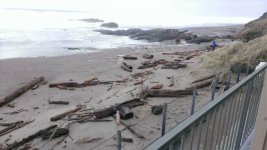
while i'm here i'll post one of my favorite spots on earth and this was just after a storm where the logs were rolling up against the little fence below.


Oregon coast logs washed up against hotel (2).jpg

any help to go to the next phase where I can resize this picture full size when it's posted will be helpful.
 
   / Photo Posting How To #166  
ALL: a very helpful member Synmat mentioned that I maybe had the first corner AA box depressed so the image wasn't showing up and only words. when the AA wasn't depressed the image showed up in the advanced section so i could double click on image and post it full size like this.

THANK YOU ALL THAT HELPED and now I can pay it forward if anybody else might need a little guidance.

cheers!!!

Oregon coast logs washed up against hotel (2).jpg
 
   / Photo Posting How To #167  
Hey Computer guys ,
I have a iPad , is it possible to upload pictures on TBN with it , I have been trying for 2 years with no luck . First reason is I am not very good with computers and like one post said “ A man has got to know his limitations “ Dirty Harry , but can it be done with I pad ?
 
   / Photo Posting How To #168  
Hey Computer guys ,
I have a iPad , is it possible to upload pictures on TBN with it , I have been trying for 2 years with no luck . First reason is I am not very good with computers and like one post said “ A man has got to know his limitations “ Dirty Harry , but can it be done with I pad ?

Yes.
If you’re using the TBN APP:
When you’re commenting in the pop up box like you normally do, click on the paper clip symbol on the bottom of the box. You will need to allow the app to access your iPad’s photos.
 
   / Photo Posting How To #169  
Thanks Coby
I know my computer skills are pathetic so how do I get on the TBN app , and by comments you mean “REPLY” correct , Hope you see this and thanks in advance for your patience , step by step would be very much appreciated if you have time , Thanks , Dan ,hope everyone safe and healthy.
 
   / Photo Posting How To #170  
A couple questions:
How do you view it now on your iPad?
Through safari and the internet and the webpage, the same as if you were using a computer?
For the app go to iPad main page. When you hit the iPads “button” and it shows all the apps you have. Click on “App store” (circled in black) to go to Apple.
Search for Tractor By Net there. Download app. It’s icon looks like the one I have circled in blue.
Adjustments.JPG
 
   / Photo Posting How To #171  
Hey Coby,
I got that ok but in order to get the app I have to figure out my Apple ID, long story short this was my wife’s iPad and she can’t remember it , then she said she never had one ????????? , I typed in tractorbynet and it’s right there , I’m going by my friends house tomorrow and he is a computer guy , he said to come by and he would help me , I’ll keep hammering this thing and update progress , thank you very much , then hopefully we can continue . Dan
 
Last edited:
   / Photo Posting How To #172  
Hey Coby , TBN is a free app correct ?
 
   / Photo Posting How To #173  
I just wrote up a short and basic tutorial of how to Post Photos on TBN. I'll post it here and also in a separate thread. Please add or modify as needed.
rScotty.

Below is a real basic tutorial on how I attach photos to a message. TBN has a very sophisticated Attachment and File Upload Manager and it can be a bear to figure out the first time. So here is a very basic method; there are lots of nuances and tricks to be learned, but this will allow you to attach photos - or any type of file - to a TBN message.

1. To attach a photo to a message you have written in the Reply box, first write your message, and then go down to the bottom of the box where it gives three options: Post Quick Reply, Go Advanced, or Cancel.

2. Chose "Go Advanced", and you will see a box holding a Preview of your message looking just as it would be posted. You cannot edit your message in that box, but right beneath the Preview is another box labeled Your Message showing yet another copy of your same message but in a format which allows you to edit it. And most importantly, one of the editing things you can do now is you can attach photos or files to your message.

3. Now look a bit farther down the page beneath your edited message until you see an area labeled "Additional Options". To add a file or photo you first click on "Manage Attachments".

Clicking on "Manage Attachments" has opened yet another box called a "File Upload Manager". Look to the upper right corner where you will see a green circle with a plus sign in it that is labeled "Add Files". Click on this circle.

4. Yet another box opens! This one has the option to "Choose Files" which you now select by clicking on it. As soon as you do, it will automatically take you to the directory of your computer where you can then select whichever files or photos you want to include beneath your TBN message. Select one photo or file or as many as you want. Each one that is selected turns blue on my computer (a Mac). When you've selected all the photos you want, go to the bottom of the directory box that you are in where you have an option to "Cancel" or "Choose". Pick "Choose".

5. By picking "Choose" you got instantly transported back to the "File Upload Manager" where you were before, but notice that there is a slight difference: The sub box on the right top where you last selected "Choose Files is now open"...... That's all normal, but since you have already chosen the files you want, this time you click on "Upload".

6. When you clicked on "Upload", you will see a thumbnail size copy of the file you have selected automatically appear in the "File Upload Manager" in the lower left area labed "Attachments" .
You are almost done....just go over to the right and click on the box that says "Done".

7. After clicking "Done" you are now transported back to the original message you were going to post but if you go down the page and look under "Attachments" you will notice that the name of your file is included. If you now go over to the right of the page you will see a choice to either "Submit Reply" or "Preview Post". I use "Preview Post" which allows me to take a look at my reply just as it will appear, or edit it more, or even change/add more attachments.

8. If you like what you see, click on "Submit Reply" and your message with file/photo attached will appear in TBN.
If at any point in this process TBN chokes and gives you an error message I just ignore it and continue on to Preview Post again - which seems to somehow take care of the error.

9. For a discussion of more advanced posting methods, there is an ongoing TBN forum where there are other explanations and methods of attaching everything from Photos to Videos to your TBN posts. It is in the Community forum under sub-heading:
"Photos".
The complete URL is:
https://www.tractorbynet.com/forums/...ml#post1220148

10. Hopefully this helps to get newcomers over the photo posting hump,
and may your tractor run perfectly forever !

Enjoy, rScotty

I did all of that but get the following error message:
The following errors occurred:

B0CBAC80-4C92-480F-A546-1BD51F5770A9.heic: Invalid File

I'm fairly computer literate. I'm guessing the file size is too big but I do not see an option to resize to a smaller format or an way to know why the file is invalid. Any suggestions?

P.S. It may be the file type. I took the photos with my iPhone and, looking at the photo on my Mac, the file name is IMG_1283.HEIC. That doesn't look like a supported file type which the attachments box states must be: bmp doc gif jpe jpeg jpg pdf png psd txt zip. How do I convert this? Or is there a way to do it automatically?
 
   / Photo Posting How To #174  
Looks like I figured it out. If your photos are taken as mine were with iPhone, you can use your Preview app on the iMac and export the photo and save it as a .jpeg format on your computer.
 
   / Photo Posting How To #175  
I did all of that but get the following error message:
The following errors occurred:

B0CBAC80-4C92-480F-A546-1BD51F5770A9.heic: Invalid File

I'm fairly computer literate. I'm guessing the file size is too big but I do not see an option to resize to a smaller format or an way to know why the file is invalid. Any suggestions?

P.S. It may be the file type. I took the photos with my iPhone and, looking at the photo on my Mac, the file name is IMG_1283.HEIC. That doesn't look like a supported file type which the attachments box states must be: bmp doc gif jpe jpeg jpg pdf png psd txt zip. How do I convert this? Or is there a way to do it automatically?

All images should be resized DOWN prior to uploading...especially to forums where many of the readers do not have super fast Internet service...640x480 are fine for casual viewing...
 
   / Photo Posting How To #176  
I did all of that but get the following error message:
The following errors occurred:

B0CBAC80-4C92-480F-A546-1BD51F5770A9.heic: Invalid File

I'm fairly computer literate. I'm guessing the file size is too big but I do not see an option to resize to a smaller format or an way to know why the file is invalid. Any suggestions?

P.S. It may be the file type. I took the photos with my iPhone and, looking at the photo on my Mac, the file name is IMG_1283.HEIC. That doesn't look like a supported file type which the attachments box states must be: bmp doc gif jpe jpeg jpg pdf png psd txt zip. How do I convert this? Or is there a way to do it automatically?

No, it is not too big; that's not the problem. I do not believe there is a way (within TBN anyway) to do the necessary file type conversion automatically. TBN will automatically take care of the size; don't worry about size. Here are multiple ways that work:
-- First in inserting the image into a post once you convert it to a compatible type, like jpeg, go to Advance mode in the lower right corner area of the fresh post you are composing. Use the little icon in the upper of 2 headers that relates to attachments. ADD an image to the stash of them in the new dialog picture window, upper left, following directions there. Then upload the image, see it/verify it there in upper left, surrounded by a green frame, and then select "insert in-line" followed by Done in the lower right of that picture insertion dialog window. That puts your image in your TBN post where ever you had the cursor before that.
-- Now, back to your file type which won't work, Take whatever image you have (such as the oddball dot heic file you mention above) and open that file in your pc with whatever the default photo reader is. Then try saving it as a jpeg file instead of the .heic. Your reader should offer that option in the "save as file type," lower right corner. If jpeg is not offered, open the file in Adobe Photoshop (no matter what version) and then store it as a jpeg file. Then proceed as described above to put it in your post.
-- Bottom line -- do whatever you have to do to get the .heic file converted to a .jpeg file. Then insert it into your post during composition.

p.s.: I think you'll have a bunch of trouble doing anything with .heic image files, whether TBN related or not,, until you convert them to .jpeg or something more common. Mac, iPhone and anything Apple is bad about coercing people into using Mac-only proprietary stuff instead of world-wide standard environs.
 
   / Photo Posting How To #177  
Looks like I figured it out. If your photos are taken as mine were with iPhone, you can use your Preview app on the iMac and export the photo and save it as a .jpeg format on your computer.

Yes, that's part of what I was describing in my post # 176 while you were typing. Whatever you normally view the picture in probably has a save-as or export function that gives you .jpeg as an option.
 
Last edited:
   / Photo Posting How To #178  
All images should be resized DOWN prior to uploading...especially to forums where many of the readers do not have super fast Internet service...640x480 are fine for casual viewing...

It's not the size, it's the weight. It's all about file size (weight). An image that is 1024 x 768 will fill the screen for easy viewing, but can weigh less than a 640 x 480. I shoot for 100Kb or less.


Consider a plastic 55 gallon barrel. I can easily lift an empty one, but can't even budge one full of diesel.
 
   / Photo Posting How To #179  
It's not the size, it's the weight. It's all about file size (weight). An image that is 1024 x 768 will fill the screen for easy viewing, but can weigh less than a 640 x 480. I shoot for 100Kb or less.


Consider a plastic 55 gallon barrel. I can easily lift an empty one, but can't even budge one full of diesel.

Resolution Explained

...A digital image is a rectangle made up of many small squares of color called pixels. The number of pixels across the width and height of the image is called the resolution. An image with 640 pixels across the width and 480 pixels high has a resolution of 640x480. The more pixels in the image file, the higher the resolution. Many cameras offer a choice of resolutions from 640x480 up to 3000x2000 or higher. The larger the file resolution, the fewer images that will fit on your camera memory card.
 
   / Photo Posting How To #180  
No, it is not too big; that's not the problem. I do not believe there is a way (within TBN anyway) to do the necessary file type conversion automatically. TBN will automatically take care of the size; don't worry about size.
------------------------------------------.

How will TBN automatically take care of the size?

Most of the photos posted now are over 4,000x3,000 pixels.

Here are the maximums currently allowed:
ak.JPG
 

Tractor & Equipment Auctions

Meyer 8' Snow Plow w/ Bracket (A55272)
Meyer 8' Snow Plow...
Kubota M5-111 (A53317)
Trailmobile Van Trailer (A56438)
Trailmobile Van...
2021 XCMG CV123PDU ROLLER (A60429)
2021 XCMG CV123PDU...
2009 IC Corporation PB105 School Bus (A59230)
2009 IC...
iDrive TDS-2010H ProJack M2 Electric Trailer Dolly (A59228)
iDrive TDS-2010H...
 
Top