Scanning Documents

   / Scanning Documents #1  

Bird

Rest in Peace
Joined
Mar 20, 2000
Messages
42,151
Location
Corinth, Texas
I need help from one of you computer experts. If I scan a page from my tractor manual on my HP printer/fax/copier/scanner, and save the image, what suffix would I use to be able to attach that file to a message to post on the forum so others could read it?

Bird
 
   / Scanning Documents #2  
Bird,
Save it as a JPG and that way anyone will be able to read it. Just like any photo.

Von
 
   / Scanning Documents #3  
Bird,

If your device does not allow the JPG option, save it as a TIF or TIFF (Tagged Image File Format). That is the default for most scanners. Most people can read that. Or you have to save as TIF, you could or should convert over to JPG as Von suggested, because it will dramatically reduce the file size.

Let's see what you're up to!

BobT.
A Indiana Boy
 
   / Scanning Documents
  • Thread Starter
#4  
Thanks Von & BobT. I guess I'll have to skip it. If I save it as *.tif, when I try to attach it, I get an error message that it has to be "zip, txt, gif, jpg, jpeg, bmp, htm, or html" so I can't upload it. And if I save it as *.jpg, it's 211k and the limit is supposed to be "200000".

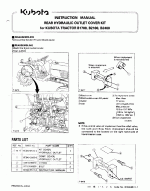
Several people had expressed an interest in the optional rear hydraulic outlet on several Kubota models and the "instruction manual" is a single 8.5"x11" sheet, but has good drawings that show all the parts and the location on the tractor, so I was going to try to post it. I guess if anyone wants to see it, they can send me a fax number and I'll fax it to them. Or they can send me their USPS address and I'll mail them a copy.

Bird<P ID="edit"><FONT SIZE=-1>Edited by Bird on 01/16/01 11:46 PM (server time).</FONT></P>
 
   / Scanning Documents #5  
Okay Bird, time to turn you into a top notch graphics editor!

There is an excellent free graphics program called Irfan Viewer, which will allow you to open the TIF file and save it as JPG. You can then upload the smaller JPG file.

Get it here: Irfan Viewer

BobT.
A Indiana Boy
 
   / Scanning Documents
  • Thread Starter
#6  
Well, BobT, I downloaded it, unzipped it, and everytime I try to open it, I get an error message that "This program has performed an illegal operation and will be shut down."/w3tcompact/icons/frown.gif

Bird
 
   / Scanning Documents #7  
Bird,

You might want to reboot your computer and see if will run with a fresh memory. Sometimes an installed program will load program componets that need to be registered by the operating system in order to run. UYsually a reboot is necessary for that to happen.

Irfan View has been around a long time, many years, and I have run it without problems all the while.

What operating system are you running? How much RAM memory?

If you are running a computer more than 3 years old, and have not run any OS updates, there may be compatability issues, since programs tend to get updated to work within a framework of the past 18-24 months.

Sorry you are having this problem.

You could email the file to Muhammad and I am sure he would convert it for you. But, like I said, it would be nice to see lots of your photos up here, since I am sure it would be instructive and entertaining.

These dang computers. Always something to fix.

BobT.
A Indiana Boy
 
   / Scanning Documents #8  
Bird -

Guess I came in a little late on this one. Sorry 'bout that. /w3tcompact/icons/frown.gif

If you're scanning a photograph, like a snapshot of your tractor or a portrait of your own handsome face, you will get the best results saving it as a jpg file. You should be able to vary the compression to get your file size down to something reasonable. If you're exceeding 200K with a jpg, I'm guessing the physical size of your image is too big to start with. Whatever software you're using, it should have a provision for scaling it down to whatever size you want. If you want it to look good on just about everybody's screen, make sure the width doesn't exceed, say, 800 pixels. In fact, I believe Muhammad recommended a maximum width of 720 pixels.

Now then, if you are scanning a line drawing and/or text, such as you find in Kubota manuals, do not save it as a "jpg" -- that would be very inefficient. Instead, save this type of image as a gif file. This format works much better on images with very few colors, especially where the background is mostly one color, like the white pages in your manual. The compression is very good on this type of image, and will usually be smaller than a "jpg". Same rule applies about the width, though -- 800 pixels or less.

I would recommend staying away from TIFF files for what you're doing. In general, TIFF's are not compressed, and if you're scanning an 8-1/2 x 11, the file size will be humongous, and any application you use to manipulate it will need lots[/b] of RAM. /w3tcompact/icons/frown.gif

Don't give up -- I want to see this thing myself. /w3tcompact/icons/wink.gif

HarvSig.gif
 
   / Scanning Documents
  • Thread Starter
#9  
Thanks guys. BobT, last night I did reboot the computer and that program opened, I opened my scanned image (Good Lord, so big I had to scroll all over the place to see it), I shrunk it down to a width that fit the screen (and probably did it the wrong way), saved it as *.jpg, and then it was 876k. So I closed the program, deleted the image, scanned it again, and tried to open the program again, and was back to the error message. I'm running a 3 year old computer with only 64 meg of memory, Windows 98 Second Edition. Anyway, I dumped that program; already got too many applications that I don't use (or know how to use).

Harv, this morning I scanned it again and re-sized it to 720 pixels (I'd forgotten about that feature in the software and wouldn't have had any idea what size to use anyway) and it worked. Many thanks. It's posted under the Hydraulic Tip 'N Tilt in the Kubota Owning forum. And while I was doing it, I forgot what you'd told me about NOT using *.jpg so that's what I used./w3tcompact/icons/frown.gif

Bird
 
   / Scanning Documents #10  
Bird -

Your scan came out great. You're becoming more of a computer guy every day (sorry -- I don't mean to be insulting. /w3tcompact/icons/wink.gif).

Near as I can tell from the diagram, my L2500 is just plain different. I think I'm gonna have to print out some pictures and go talk to a real Kubota mechanic to figure exactly how to plumb in a tip 'n' tilt. According to my wallet, there's no rush anyway. /w3tcompact/icons/frown.gif

<font color=blue>I forgot what you'd told me about NOT using *.jpg</font color=blue>

Interestingly, you achieved a very economic file size using "jpg" anyway. Now I'm going nuts trying to figure out exactly why it worked so well. I tried making a "gif" file from your image and it actually came out larger. After all the spouting off I did on the subject, it's a bit disturbing to me. /w3tcompact/icons/crazy.gif It contradicts all I ever learned, all I ever read (I have about $300 worth of books on digital imaging and file formats). Plus, I have actually written software to do both kinds of compression, so I can say with some authority that I know how it works. Or at least I thought I did. /w3tcompact/icons/blush.gif

Oh, well. Scientists have proven that bumblebees can't fly, yet they seem to do just that. I will probably now waste more time that I don't really have trying to reconcile this mystery. Thanks a lot, Bird! /w3tcompact/icons/wink.gif

HarvSig.gif
 
   / Scanning Documents #11  
Harv,
Maybe the pallette or the number of colors? If your conversion is mixing one JPG color into a couple of close-but-no-cigar GIF colors?

<font color=green>mark</font color=green>
markcg_sig.gif
 
   / Scanning Documents #12  
Hmm, Harv, figure this one out! /w3tcompact/icons/wink.gif

37k GIF attached...

msig.gif
 

Attachments

  • 18-29034-scan2.gif
    18-29034-scan2.gif
    36.9 KB · Views: 129
   / Scanning Documents #13  
Mark -

Not quite sure what you're saying.

Bird's image happens to consist of 130 shades of gray, so the adaptive gif color table would be an exact match.

The JPEG compression algorithms (way gnarly) are geared to "continuous tone" images such as found in real-life photographs. Since Bird's image consists primarily of sharp transitions, it should lend itself more to the GIF format, which is more run-length encoded.

My best guess is that because it was scanned as a grayscale image, the apparent sharp edges actually consist of short gradients (which gives much smoother-looking lines, by the way). That's why what appears to be a black and white picture actually contains 130 shades of gray. Apparently if there is enough of these kinds of gradients, JPEG will do a better job.

Either that, or it's magic. /w3tcompact/icons/laugh.gif

HarvSig.gif
 
   / Scanning Documents #14  
<font color=blue>figure this one out!</font color=blue>

You're playing with my head, Muhammad!!! /w3tcompact/icons/shocked.gif

That's the result I was expecting, but when I used Photoshop to create the gif, it was nowhere near that small.

Fess up, Dude! What did I miss? /w3tcompact/icons/crazy.gif

HarvSig.gif
 
   / Scanning Documents
  • Thread Starter
#15  
Heck, I don't even know what you guys are talking about, but I'm using the software that came with this Hewlett-Packard Office Jet 520 printer, and if it helps any, when you scan anything, it offers the options of Text, Photo, Graphic, or Other Custom Settings. I selected Photo simply because it indicated that would be the smallest file, and it said it scanned at 150 x 150 dpi in Grayscale. In other words, I just experimented without knowing what I was doing.

Bird
 
   / Scanning Documents #16  
Muhammad -

Wait a minute, you sly dog!

I tried dropping my color depth to 4 and got the same results you did.

No wonder you're called the forum master. /w3tcompact/icons/wink.gif

Bird -
I think you're smarter than all of us. You got the job nicely done without wasting near as much time as I have. /w3tcompact/icons/smile.gif

HarvSig.gif
 
   / Scanning Documents #17  
My guess is you came out with a 222k GIF out of PS /w3tcompact/icons/wink.gif ... makes sense, because when you save an image as a GIF in PS, it is going to save it as a perceptual, selective, adaptive or greyscale; 256 colors. Take your pick, in this case it would be 256 shades of grey.

You can get away with only 2 colors if you adjust the image's brightness/contrast so the content is completely black, and so the two colors in the image would be white and black. The jump to 4 colors means another 15k, but the image looks as good to the average eye as the 256 color image does.

You need to reduce the number of colors in the GIF. PS6 has much better GIF and JPG image color/quality control than the 5.x versions... while I had plugins to do the work in 5.x, it can be done within Photoshop in 6.0.

msig.gif
 
   / Scanning Documents #18  
OK, I am no expert, but I think I meant something like that /w3tcompact/icons/blush.gif. I was trying to think that if Bird had scanned it telling the scanner it was a photo, then it would have a greater "color" range than a line drawing or text. Converting between formats, each succesive method would attempt to get as much information into the file as it could.

<font color=green>mark</font color=green>
markcg_sig.gif
 
   / Scanning Documents #19  
Yeah, that's what I thought you were saying, too. /w3tcompact/icons/wink.gif /w3tcompact/icons/smile.gif See, it makes sense!

msig.gif
 

Tractor & Equipment Auctions

New Holland WorkMaster 37 (A53317)
New Holland...
2019 JOHN DEERE 850L LGP CRAWLER DOZER (A60429)
2019 JOHN DEERE...
2018 CATERPILLAR 323 EXCAVATOR (A60429)
2018 CATERPILLAR...
2020 PETERBILT 567 (A58214)
2020 PETERBILT 567...
Dodge Charger (A56859)
2020 Ram Promaster City 1500 Cargo Van (A59230)
2020 Ram Promaster...
 
Top